Setup and administration
Build a complete approval workflow: a request form, a multi-stage route with SLAs, and conditional rules that skip, add or auto-approve stages.
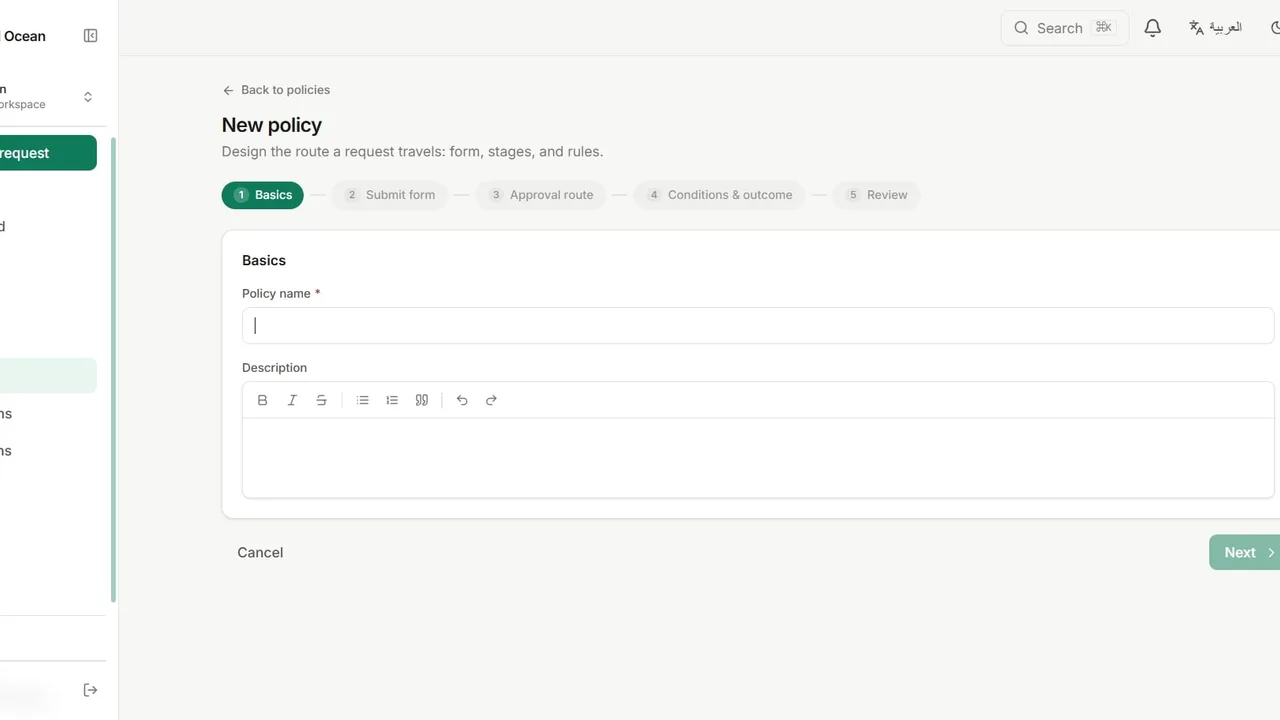
Open Policies and click New policy. Give the policy a name and a description.
On Submit form, add the fields requesters fill in: choose each field’s type, mark it required, set when it is shown, and list options for select fields.
On Approval route, configure each stage: its name, the approval mode (for example all approvers), the approver role and an SLA in hours.
Decide who approves each stage: a role, a role within a department, or specific people.
Add stages, add a parallel branch for approvals that run at the same time, and drag stages to reorder them.
On Conditions and outcome, set each stage to always run, run conditionally, or be skipped when a field has a given value.
Add auto-approve conditions, or an extra stage that is added only for certain answers.
Review the whole policy, click Create policy, and edit or archive it later. An archived policy can be restored.